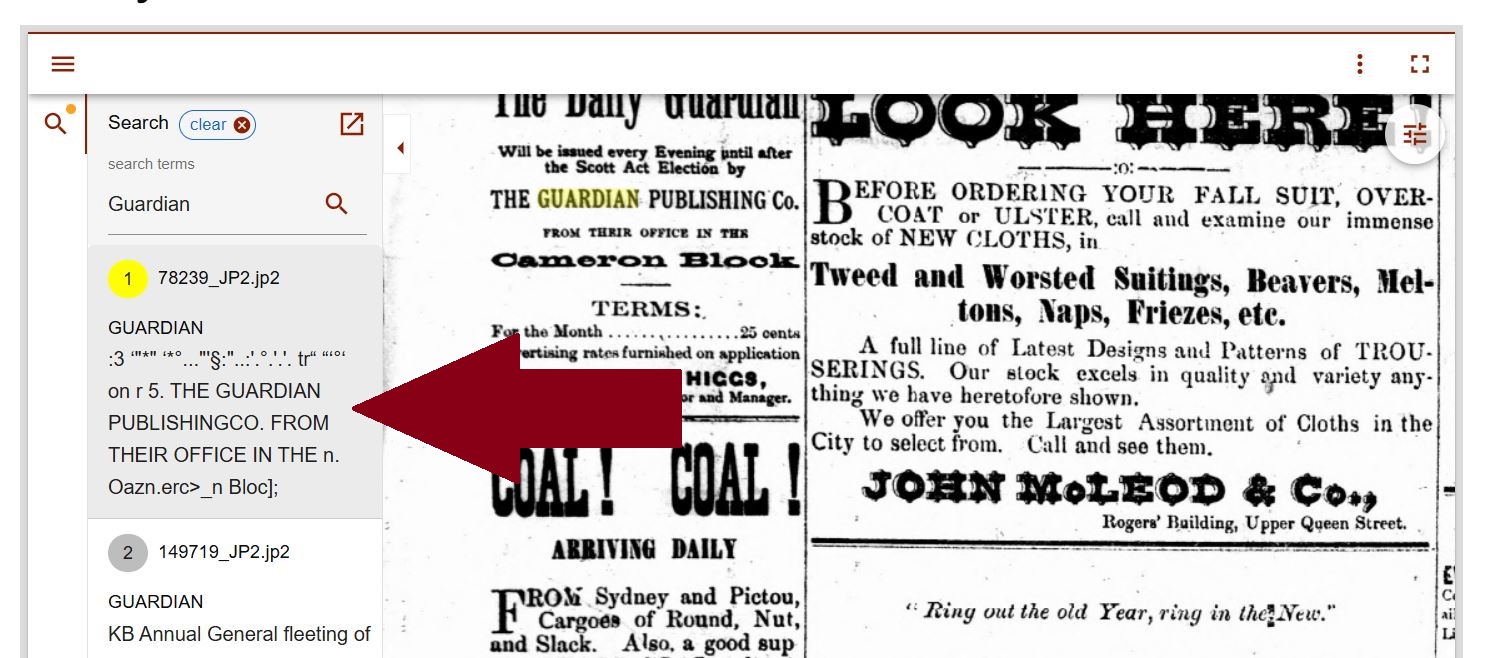
Islandnewspaper.ca now uses a new viewer or 'viewing panel' to display digitized newspapers.
This new viewing panel has similar features to what you are used to on Islandnewspapers.ca, but they may look a little different.
The guide below provides a brief overview of the new viewing panel and offers some helpful use tips
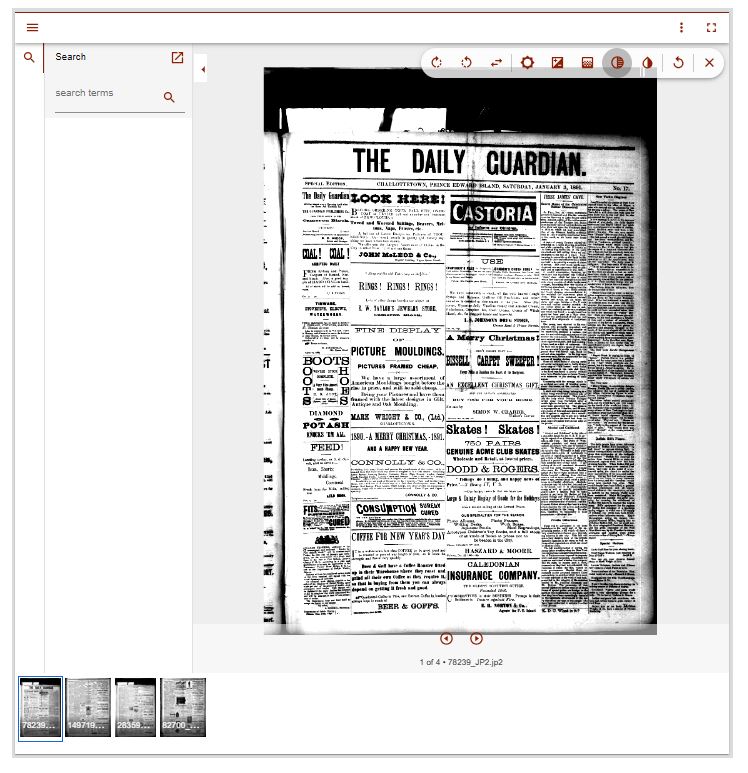
Guide Contents
- ImageTools
- Zooming In/Out
- Full Screen Mode
- Moving Between Pages in a Newspaper Issue
- Going from a Newspaper Page to the Full Issue
- Searching within a Newspaper Issue or Page
Image Tools
Use the Image tools in the upper right corner of the viewing panel to rotate or flip the page, adjust the contrast, brightness, etc...
If you've made adjustments, you can revert back by clicking the circular arrow icon.

Zooming In/Out
Use the wheel on your mouse to zoom in or out on a page (there is no zoom 'button' to click in this viewing panel set up).
If you are on a smartphone or a tablet (no mouse) you can use your touchscreen to zoom in and out
If you are on a laptop with no mouse, you can use your trackpad to zoom in and out the same as you would on a touchscreen phone or tablet.
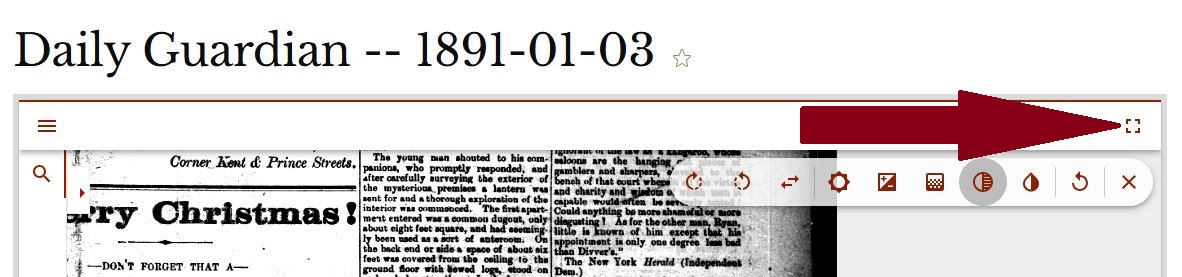
Full Screen Mode
You can click the 'four corners' icon in the top right-hand corner of the viewing panel to go to full-screen mode.
Click the same icon or hit 'escape' on your keyboard to exit full screen.
Moving Between Pages in a Newspaper Issue
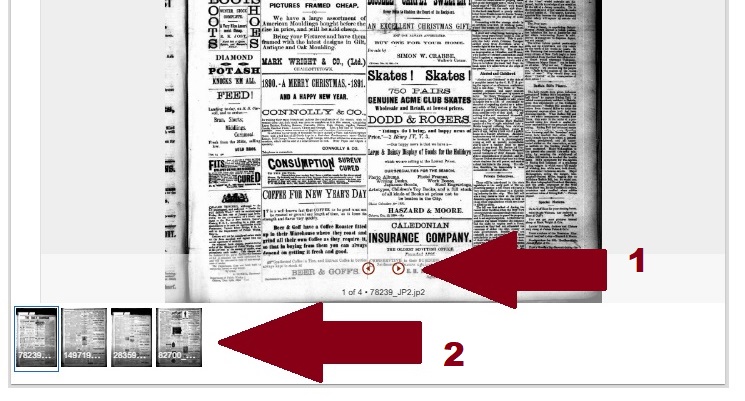
When you are looking at a Newspaper Issue with multiple pages, there are two ways to move back and forth through the pages.
- Use the small arrows at the bottom of the viewing panel to move between pages
OR - The individual pages are displayed as small 'thumbnail' images at the bottom of the viewing panel. Clicking a page image takes you to that page.
Going from a Newspaper Page to the Full Issue
When you search the newspaper collection and click a result, you will be taken to the specific newspaper page containing that result. You'll know you are on a specific page because the Page Number will appear at the top of the screen.
If you would like to see the rest of the pages in that issue, click the 'Go to full Publication Issue' button, located just below the Page title.

Searching within a Newspaper Issue or Page
To search for a word within an issue or a single page, click the small magnifying glass on the left side of the viewing panel. This will open the search box.
You can type your search term into the box and hit 'Enter' on your keyboard.
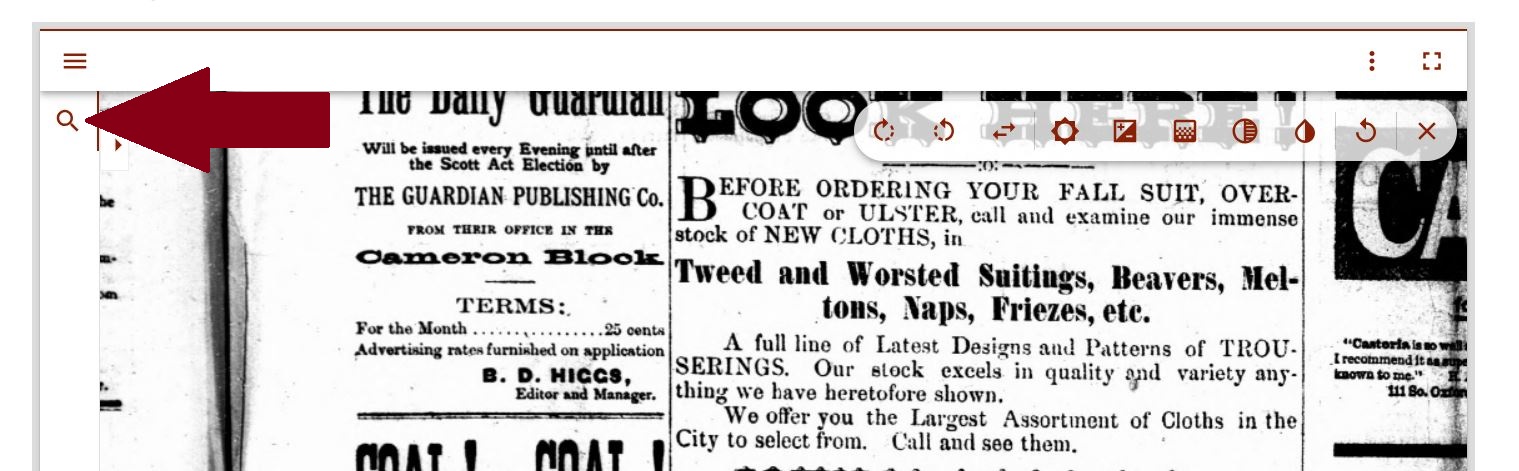
A list of results will appear beneath the search box, and as you click each one, it will highlight itself on the newspaper page (either blue or yellow).
If you are looking at a Newspaper Issue with multiple pages, you will be shown the relevant page when you click each search result.